 Auto File Organizer
Downloads that tidy themselves.
Write a rule once, such as images go to Images, installers older than 30 days go to the Recycle Bin, or PDFs go to Documents/PDF/2026. Auto File Organizer runs it from the notification area every time a file arrives.
Get Auto File Organizer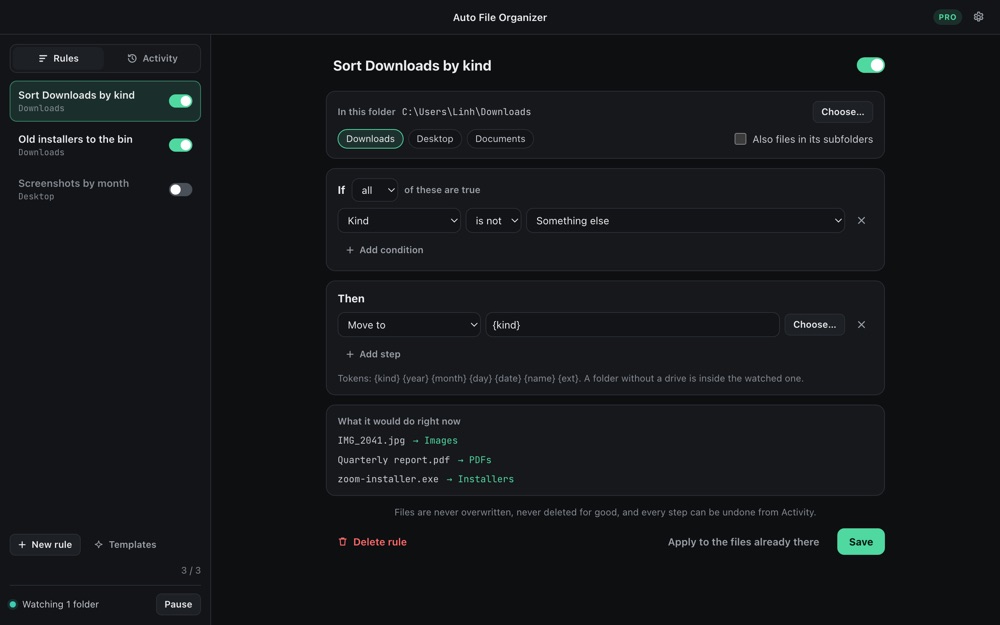
Why it is different
Rules in plain words
If the kind is Image, the name starts with Screenshot, it is bigger than 500 MB or it arrived 30 days ago, then move, copy, rename, unzip or send it to the bin.
See before it acts
Every rule shows what it would do to the files there right now, before you turn it on.
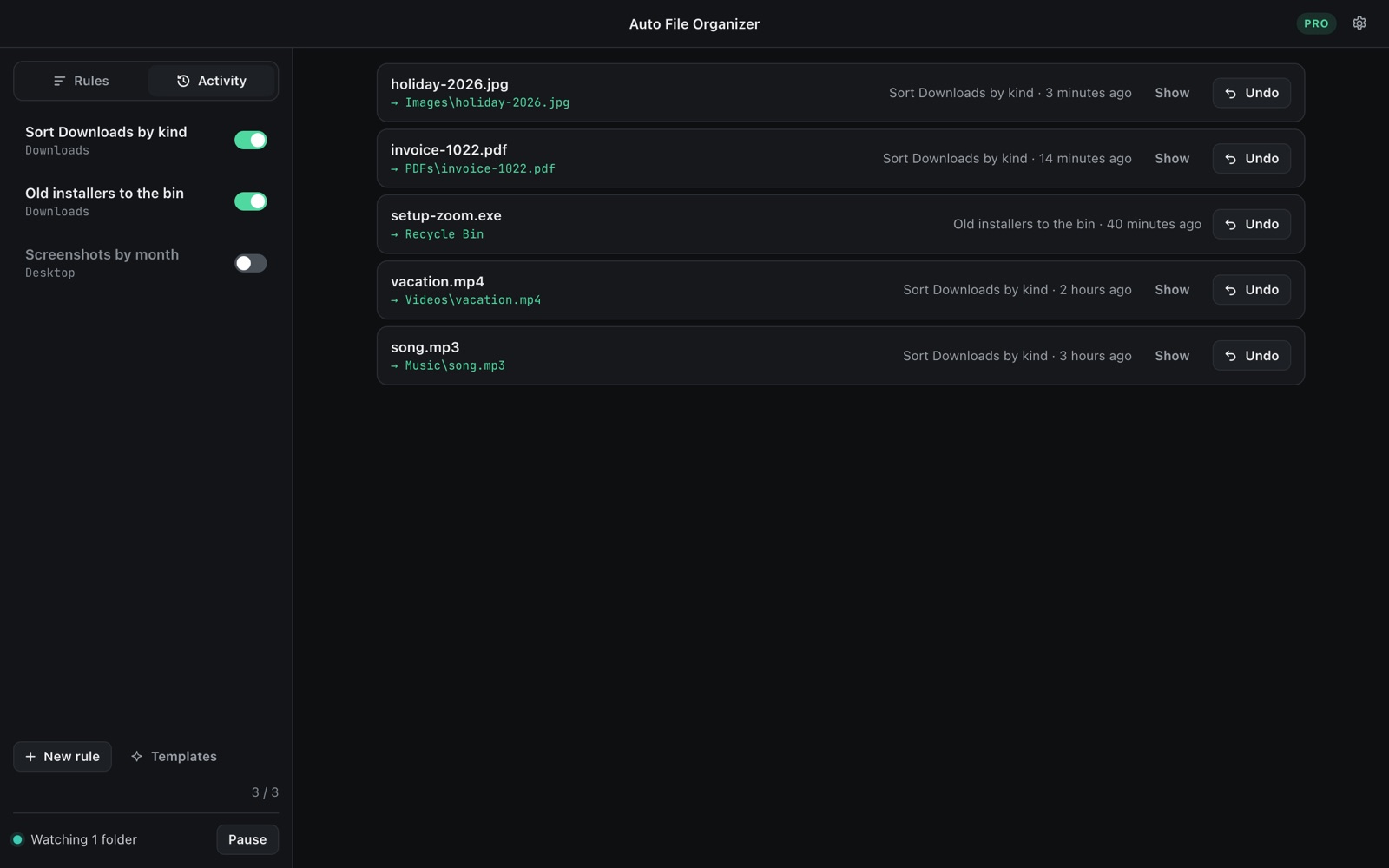
Undo anything
Every step is in the activity log. Undo puts the file back where it was, with its old name.
Never loses a file
No overwriting: a clash becomes "name (2)". Nothing is deleted for good: it goes to the Recycle Bin. Across drives it copies, checks, then removes.
Waits for downloads
Files still downloading (.crdownload, .part) or open in another app are left alone until they are done.
Quiet in the tray
Starts when you sign in if you want, pauses with one click, and uses no CPU while nothing arrives.
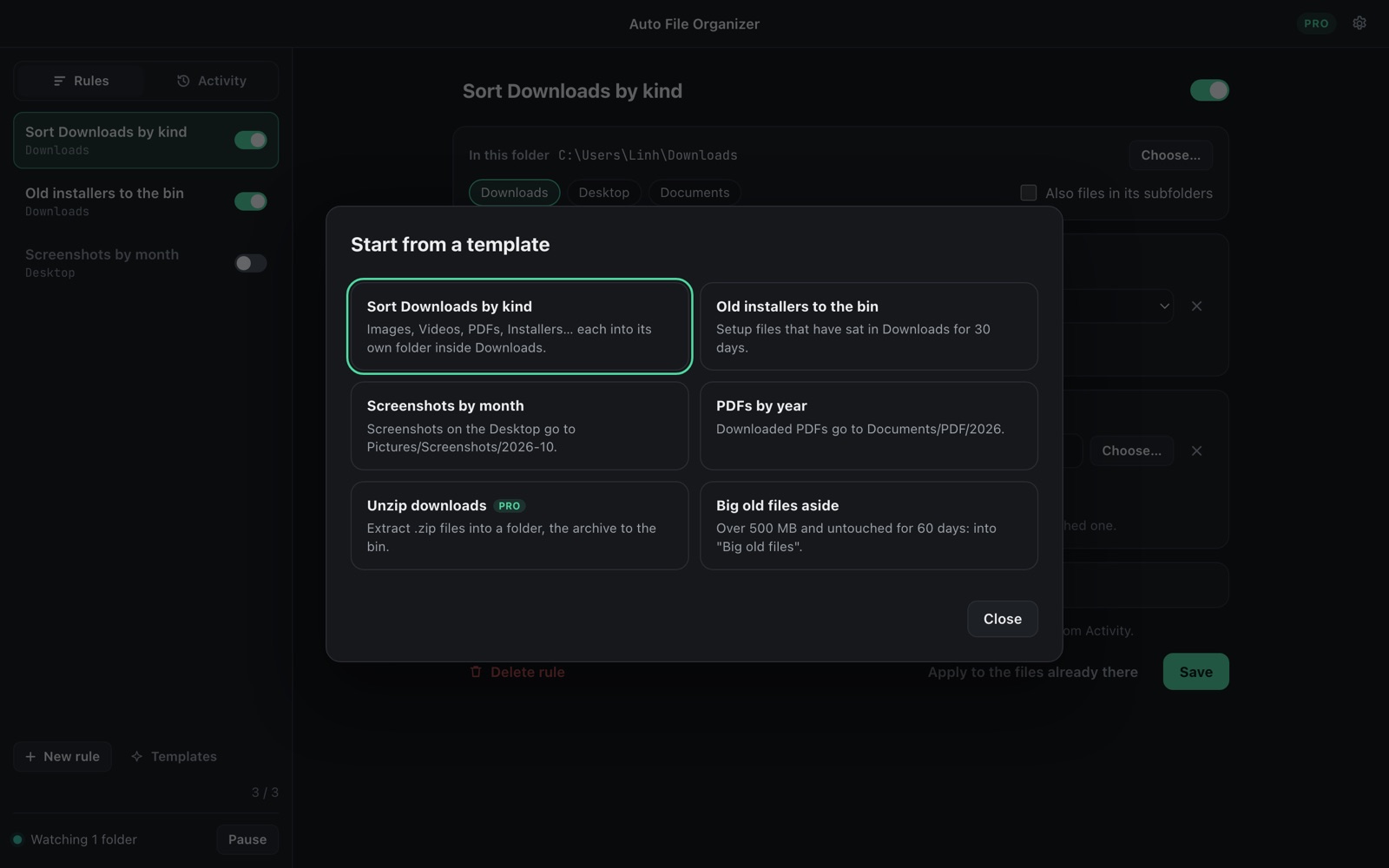
Start from a template
Sort Downloads by kind, clean up old installers, file screenshots by month, put PDFs in Documents by year, set big old files aside, or unzip downloads (Pro). Each one is a normal rule you can change.
Free, with a one-time Pro
| Free | Pro, $7.99 once | |
|---|---|---|
| Rules | 3 | Unlimited |
| Move, copy, rename, Recycle Bin | ✓ | ✓ |
| Preview, activity log, undo | ✓ | ✓ |
| Start at sign-in, tray | ✓ | ✓ |
| Unzip archives | – | ✓ |
Coming soon to the Microsoft Store. No subscription, no account, no ads.